360-degree plan for a small business

๐—–๐—ผ๐˜€๐˜ ๐—ฆ๐—ฎ๐˜ƒ๐—ถ๐—ป๐—ด๐˜€ ๐—ฆ๐˜๐—ฟ๐—ฎ๐˜๐—ฒ๐—ฟ๐—ด๐—ถ๐—ฒ๐˜€ ๐—ณ๐—ผ๐—ฟ ๐—ฆ๐—บ๐—ฎ๐—น๐—น ๐—•๐˜‚๐˜€๐—ถ๐—ป๐—ฒ๐˜€๐˜€๐—ฒ๐˜€:

๐—œ๐—บ๐—ฝ๐—น๐—ฒ๐—บ๐—ฒ๐—ป๐˜ ๐˜€๐—ต๐—ฎ๐—ฟ๐—ฒ๐—ฑ ๐˜€๐—ฒ๐—ฟ๐˜ƒ๐—ถ๐—ฐ๐—ฒ๐˜€:


By leveraging IT shared services across business units, small businesses can drive economies of scale. Most savings and cost reductions can range from 15% to 20% of service costs in 18 to 36 months, and the highest savings can reach over 25%.

  • IT Infrastructure: Small businesses can leverage shared IT infrastructure services such as cloud computing, data storage, and network security. This will help them reduce costs and improve efficiency by sharing resources across business units. Microsoft Azure is an example of IaaS that provides cloud computing, data storage, and network security services.
  • Marketing: Small businesses can also share marketing services such as social media management, email marketing, and search engine optimization (SEO). This will help them reduce costs and improve their online presence. Zoho Social or Hootsuite is an example of a SaaS product that offers social media management services.


๐—”๐—ฑ๐—ผ๐—ฝ๐˜ ๐—ฎ ๐—ฐ๐—น๐—ผ๐˜‚๐—ฑ-๐—ณ๐—ถ๐—ฟ๐˜€๐˜ ๐—ฝ๐—ผ๐—น๐—ถ๐—ฐ๐˜† ๐˜„๐—ต๐—ฒ๐—ฟ๐—ฒ ๐—ฎ๐—ฝ๐—ฝ๐—ฟ๐—ผ๐—ฝ๐—ฟ๐—ถ๐—ฎ๐˜๐—ฒ:

Opting for a cloud-first policy offers a spectrum of capabilities ranging from infrastructure as a service (IaaS) through software as a service (SaaS). While many private and public sector organizations choose cloud services for increasing agility, flexibility and scalability, they also experience cost efficiencies over time. To achieve cost savings, perform strict cloud governance or risk seeing increases in infrastructure and application costs if governance is weak.

  • Infrastructure as a Service (IaaS): Small businesses can use IaaS to reduce hardware and software costs. This will help them scale their IT infrastructure as needed without incurring additional costs. Amazon Web Services (AWS) is an example of IaaS that provides scalable computing resources.
  • Software as a Service (SaaS): Small businesses can use SaaS to reduce software licensing costs. This will help them access the latest software applications without having to purchase expensive licenses. Hubspot CRM or Salesforce is an example of SaaS that provides customer relationship management (CRM) software.

๐—–๐—ผ๐—ป๐˜€๐—ผ๐—น๐—ถ๐—ฑ๐—ฎ๐˜๐—ฒ ๐—ฒ๐—ป๐˜๐—ฒ๐—ฟ๐—ฝ๐—ฟ๐—ถ๐˜€๐—ฒ ๐—ฑ๐—ฎ๐˜๐—ฎ ๐—ฐ๐—ฒ๐—ป๐˜๐—ฒ๐—ฟ๐˜€:

As organizations expand their operations, the cost of maintaining a traditional data center will increase. This drives some IT organizations to shift their data centers to data-center switching architecture. Through data center modernization and consolidation efforts, cost savings can range between 10% and 20% of a data center budget.

  • Data Center Modernization: Small businesses can modernize their data centers by consolidating their servers and storage devices. This will help them reduce hardware and maintenance costs. VMware is an example of a company that provides data center modernization solutions
  • Virtualization: Small businesses can also use virtualization to reduce hardware costs by running multiple virtual machines on a single physical server. Oracle VM VirtualBox is an example of virtualization software that allows multiple virtual machines to run on a single physical server.

๐—ฅ๐—ฎ๐˜๐—ถ๐—ผ๐—ป๐—ฎ๐—น๐—ถ๐˜‡๐—ฒ ๐—ฎ๐—ป๐—ฑ ๐˜€๐˜๐—ฎ๐—ป๐—ฑ๐—ฎ๐—ฟ๐—ฑ๐—ถ๐˜‡๐—ฒ ๐—ฒ๐—ป๐˜๐—ฒ๐—ฟ๐—ฝ๐—ฟ๐—ถ๐˜€๐—ฒ ๐—ฎ๐—ฝ๐—ฝ๐—น๐—ถ๐—ฐ๐—ฎ๐˜๐—ถ๐—ผ๐—ป๐˜€:


The application portfolio represents a large part of an IT budget. Small businesses that standardize and rationalize their application portfolios can reduce and control costs. Savings can range between 15% and 25% of the application budget.

  • Application Portfolio Management: Small businesses can use application portfolio management to standardize their application portfolios. This will help them reduce software licensing and maintenance costs. IBM Application Portfolio Management is an example of software that helps organizations manage their application portfolios .
  • Application Rationalization: Small businesses can also use application rationalization to identify redundant or underutilized applications. This will help them reduce software licensing and maintenance costs. AppDynamics is an example of software that helps organizations identify redundant or underutilized applications.

๐—œ๐—บ๐—ฝ๐—ฟ๐—ผ๐˜ƒ๐—ฒ ๐—œ๐—ง ๐—ณ๐—ถ๐—ป๐—ฎ๐—ป๐—ฐ๐—ถ๐—ฎ๐—น ๐˜๐—ฟ๐—ฎ๐—ป๐˜€๐—ฝ๐—ฎ๐—ฟ๐—ฒ๐—ป๐—ฐ๐˜† ๐—ฝ๐—ฟ๐—ฎ๐—ฐ๐˜๐—ถ๐—ฐ๐—ฒ๐˜€:

Understanding how IT services are being delivered and what the associated costs are for IT operations is crucial for small businesses.ย Work with CFOs and finance personnel to associate general ledger entries (asset-based view) to technical costs and related costs for business services.

  • IT Financial Management: Small businesses can improve their IT financial management practices by tracking their IT expenses and associating them with business services. This will help them identify areas where they can reduce costs and optimize their IT spending.

User Interface (UI) and User Experience (UX) design

User Interface (UI) and User Experience (UX) design are two critical components of any digital product. UI design is concerned with the visual aspects of a product, such as the layout, color scheme, typography, and other design elements. UX design, on the other hand, is concerned with how users interact with a product and how they feel about it.

To create an effective UI/UX design, you need to consider the following topics:

Human-Computer Interaction (HCI)

Understanding HCI is essential for creating a successful UI/UX design. HCI is the study of how people interact with computers and how computers can be made more user-friendly. It involves understanding the userโ€™s needs and designing interfaces that meet those needs.

User Research:

Conducting user research is critical to creating a user-friendly UI/UX design. User research involves gathering information about your usersโ€™ needs, preferences, and behaviors. This information can be used to create personas, which are fictional characters that represent your target audience.

Information Architecture:

Information architecture involves organizing information in a way that makes sense to users. It involves creating a structure for your content and designing navigation that is easy to use.

Wireframing:

Wireframing is the process of creating a visual representation of your UI/UX design. It involves creating a basic layout of your interface without any design elements.

Prototyping:

Prototyping involves creating a working model of your UI/UX design. It allows you to test your design with users and make changes before you launch your product.

Visual Design:

Visual design involves creating the look and feel of your UI/UX design. It includes choosing colors, typography, images, and other design elements.

Usability Testing:

Usability testing involves testing your UI/UX design with real users to identify any usability issues. It allows you to make changes to your design before launching your product.

Accessibility:

Accessibility involves designing your UI/UX design so that it can be used by people with disabilities. This includes designing for people with visual impairments, hearing impairments, and mobility impairments.

Responsive Design:

Responsive design involves designing your UI/UX so that it works well on different devices such as desktops, tablets, and smartphones.

Design Thinking:

Design thinking is an iterative process that involves understanding the userโ€™s needs, prototyping solutions, and testing those solutions with users.

In summary, creating an effective UI/UX design requires careful consideration of your usersโ€™ needs and problems in your design process and using data to determine what matters most to them. Once you know what matters most to your users, offer it up on a plate in an easy-to-use interface that delights them at every step of their journey.

Everything about Microsoft Power Apps


Microsoft Power Apps is a suite of apps, services, and connectors, as well as a data platform, that provides a rapid development environment to build custom apps for your business needs. Whether you want to create an app from scratch, or use a template, or generate an app from your data, Power Apps has you covered. You can also use Power Apps to extend and customize the apps you already use, such as Microsoft 365, Dynamics 365, SharePoint, and more.

Why use Power Apps?

Power Apps enables you to create feature-rich, custom business apps without writing code. You can use a drag-and-drop interface to design your appโ€™s user interface, and use formulas and expressions to add logic and functionality. You can also connect your app to various online and on-premises data sources, such as Excel, SQL Server, SharePoint, Dataverse, and hundreds of others. Power Apps also provides an extensible platform that lets pro developers programmatically interact with data and metadata, apply business logic, create custom connectors, and integrate with external data.

Power Apps also helps you transform your manual business operations into digital, automated processes. You can use Power Automate to create workflows that connect your app to other services and automate tasks. You can also use Power BI to visualize your appโ€™s data and gain insights. You can also use Power Virtual Agents to create chatbots that interact with your appโ€™s users.

What are the components of Power Apps?

Power Apps consists of four main components:

  • Power Apps Studio: This is the app designer where you can create canvas apps or model-driven apps using a graphical user interface.
  • Power Apps Portal: This is the web-based management console where you can access all your apps, data sources, environments, and settings.
  • Power Apps Mobile: This is the mobile app where you can run and manage your apps on iOS, Android, or Windows devices.
  • Dataverse: This is the data platform that stores and manages the data used by your apps. Dataverse provides a secure and scalable cloud-based storage option with rich metadata and business logic.

How to get started with Power Apps?

To get started with Power Apps, you need a license that gives you access to the service. You can try Power Apps for free for 30 days by signing up with your work or school account. You can also purchase Power Apps plans that suit your needs and budget. For more information on pricing and licensing, see Purchase Power Apps.

Once you have a license, you can start creating apps using the Power Apps portal at make.powerapps.com. You can choose from three types of apps: canvas, model-driven, and portal. Canvas apps let you design your appโ€™s user interface from a blank canvas or from a template. Model-driven apps let you define the data model and components of your app using Dataverse. Portal apps let you create websites that external users can access.

What are some examples of Power Apps?

Power Apps can be used for various scenarios and industries, such as education, healthcare, retail, manufacturing, and more. Here are some examples of Power Apps that showcase the possibilities of the service:

  • Budget Tracker: A canvas app that helps you track your income and expenses using Excel as a data source.
  • Inspection: A model-driven app that helps you manage inspections of equipment or facilities using Dataverse as a data source.
  • Customer Self-Service Portal: A portal app that allows customers to view their orders, invoices, and support tickets using Dataverse as a data source.
  • Employee Ideas: A canvas app that allows employees to submit and vote on ideas for improving the organization using SharePoint as a data source.
  • School Attendance: A canvas app that allows teachers to record student attendance using OneDrive as a data source.

You can find more examples of Power Apps in the App Gallery and the Template Gallery.

How does Power Apps work with Dataverse?

Dataverse is the data platform that powers Power Apps. It lets you securely store and manage data thatโ€™s used by your apps. Data within Dataverse is stored within a set of tables. A table is a set of rows (formerly referred to as records) and columns (formerly referred to as fields/attributes). Each column in the table is designed to store a certain type of data.

Dataverse includes a base set of standard tables that cover typical scenarios, but you can also create custom tables specific to your organization and populate them with data by using Power Query. App makers can then use Power Apps Studio to build rich applications that use this data.

Dataverse also provides a number of features that enhance your data and app experience, such as:

  • Rich metadata: Data types and relationships are used directly within Power Apps Studio.
  • Logic and validation: You can define calculated columns, business rules, workflows, and business process flows to ensure data quality and drive business processes.
  • Productivity tools: You can use the add-ins for Microsoft Excel and Microsoft Word to increase productivity and ensure data accessibility.
  • Security and compliance: You can protect your data with a robust security management infrastructure that provides advanced encryption, rich access control, and deep integration with Azure Active Directory.

How does Power Apps work with Power Automate?

Power Automate is a service that helps you automate workflows across different applications and services. You can use Power Automate to create flows that connect your app to other services and automate tasks, such as sending notifications, updating records, syncing files, and more.

You can create flows from scratch or use one of the hundreds of pre-built templates available in Power Automate. You can also use the Power Automate app to run and manage your flows on your mobile device.

Power Automate also provides some advanced features that enhance your automation experience, such as:

  • UI flows: You can record and play back user interface actions for any app or website and integrate them into your flows.
  • AI Builder: You can use pre-built or custom AI models to add intelligence to your flows, such as text recognition, sentiment analysis, form processing, and more.
  • Business process flows: You can define a set of steps that users need to follow to achieve a business outcome, such as closing a deal, resolving a case, or approving a request.

How does Power Apps work with Power BI?

Power BI is a service that helps you create interactive reports and dashboards to visualize and analyze your data. You can use Power BI to connect to various data sources, such as Excel, SQL Server, Dataverse, and hundreds of others. You can also use Power BI Desktop to create reports using a drag-and-drop interface and publish them to the Power BI service.

You can use Power BI to enhance your appโ€™s data experience in several ways, such as:

  • Embedding reports and dashboards: You can embed Power BI reports and dashboards into your appโ€™s user interface using the Power Apps web part or the Power BI web part.
  • Exporting data: You can export data from your app to Power BI using the Export to data lake feature or the Export to Excel feature.
  • Analyzing in Excel: You can open data from your app in Excel using the Analyze in Excel feature or the Open in Excel feature.

Whatโ€™s New in Blazor in .NET 8 Preview 6?

.NET 8 Preview 6 is the latest preview release of .NET 8, which is expected to be released later this year. It includes many new improvements to blazor, such as:

Form model binding and validation with server-side rendering: Blazorโ€™s new server-side rendering mode can now bind and validate data from HTTP form post values. This means you can use data annotations to specify validation rules for your model classes and display error messages in your UI. You can also use the [SupplyParameterFromForm] attribute to bind data from the form request to your component properties.

Enhanced page navigation and form handling: Blazor now supports more scenarios for navigating between pages and handling form submissions. You can use the NavigationManager.NavigateTo method to navigate to a different page with or without reloading the app. You can also use the NavigationManager.LocationChanged event to react to changes in the URL. You can use the EditForm.OnSubmit event to handle form submissions without reloading the page.

Preserve existing DOM elements with streaming rendering: Blazorโ€™s streaming rendering mode can now preserve existing DOM elements when streaming updates into the page. This means that the UI will not flicker or lose focus when new content is added or removed. This provides a faster and smoother user experience.

Specify component render mode at the call site: You can now specify the render mode for a component instance using the @rendermode directive attribute. The render mode determines how the component is rendered on the page: static (no interactivity), server (server-side rendering), server-prerendered (server-side rendering with interactivity), or webassembly (client-side rendering). This gives you more control over how your components are rendered.

Interactive rendering with Blazor WebAssembly: You can now enable interactive rendering of components with Blazor WebAssembly. This means that you can have components that are initially rendered on the server and then switch to client-side rendering when the user interacts with them. This can improve performance and reduce bandwidth usage by only loading the necessary code and data on demand.

Blazor template consolidation: As part of unifying the various blazor hosting models into a single model in .NET 8, Microsoft has also consolidated the number of blazor project templates. In this preview release, they have removed the Blazor Server template and the โ€˜ASP.NET Core hostedโ€™ option from the Blazor WebAssembly template. Both of these scenarios will be represented by options when using the new Blazor Web App template.

These are some of the major updates to blazor in .NET 8 Preview 6.

Leveraging Server-Side Preloading in Blazor

Blazor provides a feature called server-side preloading, which can significantly improve the performance of your application by reducing the initial load time for subsequent pages. By utilizing server-side preloading, you can fetch and render a page on the server before the user even requests it, allowing for a seamless and faster navigation experience.

Here’s how you can implement server-side preloading in Blazor:

  • Identify the pages that you want to preload. Typically, these are pages that users frequently visit or are likely to navigate to next.
  • Add the [RouteView] attribute to the components corresponding to the pages you want to preload. This attribute allows Blazor to detect and load the page on the server before the user navigates to it.
[RouteView("/path-to-page", typeof(YourPageComponent))]
  • Configure the Router component in your App.razor file to enable server-side preloading:

<Router PreRenderPagesOnDemand="true">
    <!-- Your route configurations -->
</Router>

Setting the PreRenderPagesOnDemand property to true enables server-side preloading for the specified pages.

  • Compile and run your Blazor application.

With these steps in place, Blazor will automatically pre-render the specified pages on the server when it detects that the user is likely to navigate to them. As a result, when the user eventually requests a preloaded page, it will load faster since most of the rendering work has already been done on the server.

Note that server-side preloading is an optimization technique and should be used judiciously. It’s essential to identify the pages that will benefit the most from preloading to avoid unnecessary overhead. Additionally, consider monitoring the performance of your application and adjust the preloading strategy as needed.

Utilizing server-side preloading in Blazor can significantly enhance the user experience by reducing page load times, thereby improving engagement and satisfaction with your application.

Integration with Nethereum Blockchain in DotNet

Blockchain technology has revolutionized numerous industries by providing a secure, decentralized, and transparent platform for conducting transactions and maintaining records. With the increasing demand for blockchain applications, integrating blockchain into web applications has become essential for many businesses. In this article, we will explore how to implement blockchain in ASP.NET Core, one of the most popular web development frameworks, using the C# programming language. We will cover the key concepts of blockchain and walk through code examples to demonstrate its implementation.

Blockchain is a distributed ledger technology that enables the creation of a decentralized, tamper-proof, and transparent system for recording transactions. It consists of a chain of blocks, where each block contains a set of transactions and a reference to the previous block. The key features of blockchain include immutability, transparency, and consensus.

we will use Nethereum, Nethereum is a popular Ethereum library for .NET

Now for the Part of Implementing the Blockchain Logic.
First we will create a new folder called “Blockchain” in the project root directory.
Now inside the blockchain folder we will add new class file Block.cs This class represents a block in the blockchain.

public class Block
{
    public int Index { get; set; }
    public DateTime Timestamp { get; set; }
    public string Data { get; set; }
    public string PreviousHash { get; set; }
    public string Hash { get; set; }
}

Below is the description of the Class Block Properties.

Index: It is an integer property representing the index or position of the block within the blockchain.

Timestamp: It is a DateTime property representing the timestamp or the time at which the block was created or added to the blockchain.

Data: It is a string property that holds the data or information associated with the block. The data can vary depending on the purpose of the blockchain.

PreviousHash: It is a string property that stores the hash value of the previous block in the blockchain. This property is used to maintain the integrity and chronological order of the blocks in the blockchain.

Hash: It is a string property that stores the hash value of the current block. The hash is calculated based on the combination of all the block’s properties (including Index, Timestamp, Data, and PreviousHash) and serves as a unique identifier for the block. It ensures the immutability and security of the block’s contents.

next step is to add a new class file called Blockchain.cs to represent the entire blockchain and provide the necessary methods for managing blocks.

public class Blockchain
{
    private List<Block> chain;

    public Blockchain()
    {
        chain = new List<Block>();
        InitializeGenesisBlock();
    }

    private void InitializeGenesisBlock()
    {
        chain.Add(CreateGenesisBlock());
    }

    private Block CreateGenesisBlock()
    {
        return new Block
        {
            Index = 0,
            Timestamp = DateTime.Now,
            Data = "Genesis Block",
            PreviousHash = string.Empty,
            Hash = CalculateBlockHash(0, DateTime.Now, "Genesis Block", string.Empty)
        };
    }

    private string CalculateBlockHash(int index, DateTime timestamp, string data, string previousHash)
    {
        
        string blockData = $"{index}-{timestamp}-{data}-{previousHash}";
        byte[] bytes = Encoding.UTF8.GetBytes(blockData);
        byte[] hashBytes;

        using (SHA256 sha256 = SHA256.Create())
        {
            hashBytes = sha256.ComputeHash(bytes);
        }

        StringBuilder builder = new StringBuilder();
        foreach (byte b in hashBytes)
        {
            builder.Append(b.ToString("x2"));
        }

        return builder.ToString();
    }

    
}

Futhermore, the detailed explanation of the above code is as follows.

Block Class:

This class represents a block in the blockchain.
It contains properties such as Index, Timestamp, Data, PreviousHash, and Hash.
The properties store information about the block’s position, creation time, data, and hash values.
The Hash property is calculated based on the block’s properties and serves as a unique identifier.
Blockchain Class:

This class represents the blockchain itself and manages the chain of blocks.
It has a private member variable called chain, which is a list of Block objects representing the blocks in the chain.
Blockchain() Constructor:

This constructor initializes a new instance of the Blockchain class.
It creates an empty list for the chain and calls the InitializeGenesisBlock() method.
InitializeGenesisBlock() Method:

This method adds the genesis block (the first block in the blockchain) to the chain.
It calls the CreateGenesisBlock() method to create the genesis block and adds it to the chain list.
CreateGenesisBlock() Method:

This method creates and returns the genesis block.
It sets the properties of the genesis block, including the index, timestamp, data, previous hash, and calculates the hash value based on these properties using the CalculateBlockHash() method.
CalculateBlockHash() Method:

This method calculates and returns the hash value of a block.
It concatenates the index, timestamp, data, and previous hash into a single string.It converts the concatenated string to bytes and uses the SHA256 algorithm to compute the hash value.The hash bytes are then converted to a hexadecimal string representation and returned.
Overall the Blockchain class, it will automatically initialize with a genesis block.
we will add our class as a service in Program.cs services.AddSingleton(); next to test run the application to see the result in json Format.

Sentiment Analysis In ML.NET

Introduction:

In the digital age, we generate massive amounts of data every day. Sentiment analysis helps us understand the emotions expressed in text data, such as whether it’s positive, negative, or neutral. ML.NET is a machine learning framework that enables developers to perform sentiment analysis using C# or any .NET programming language. In this blog post, we’ll explore the basics of sentiment analysis in ML.NET and how it can help unlock valuable insights from text data.

Sentiment Analysis:

Sentiment analysis is all about figuring out the emotional tone of a piece of text. It helps us determine whether the sentiment is positive (happy, satisfied), negative (sad, angry), or neutral (neutral, indifferent). By analyzing text from social media posts, customer reviews, and other sources, sentiment analysis allows businesses to make informed decisions, improve customer experiences, and spot emerging trends.

ML.NET:

ML.NET is a machine learning framework developed by Microsoft. It lets developers build custom machine learning models using C# or any .NET language. ML.NET simplifies the integration of machine learning into applications and offers various algorithms and pre-trained models. It’s designed to make machine learning accessible to developers with different levels of expertise.

Performing Sentiment Analysis with ML.NET:

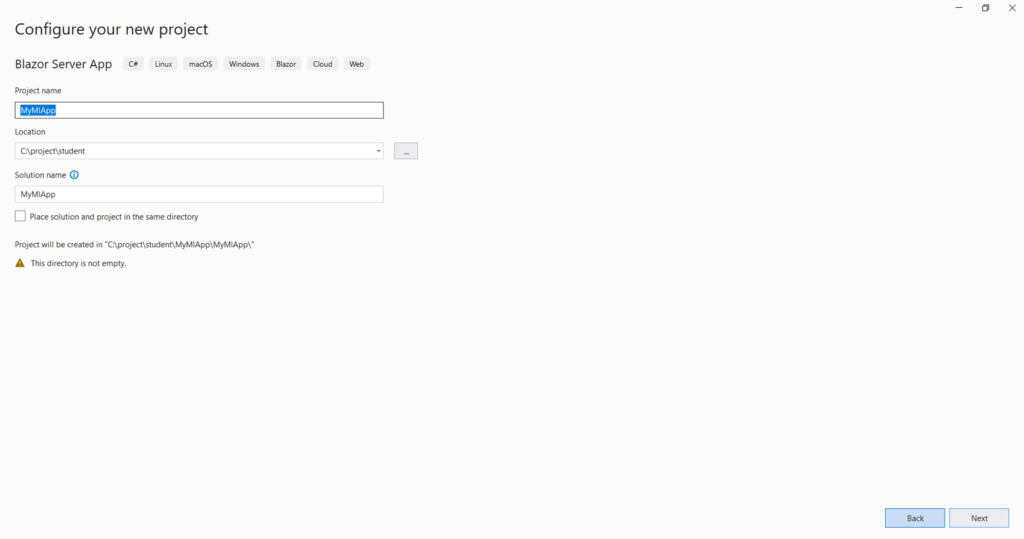
1.Select the C# Console App project template.
2.Change the project name to myMLApp.
3.Make sure Place solution and project in the same directory is unchecked
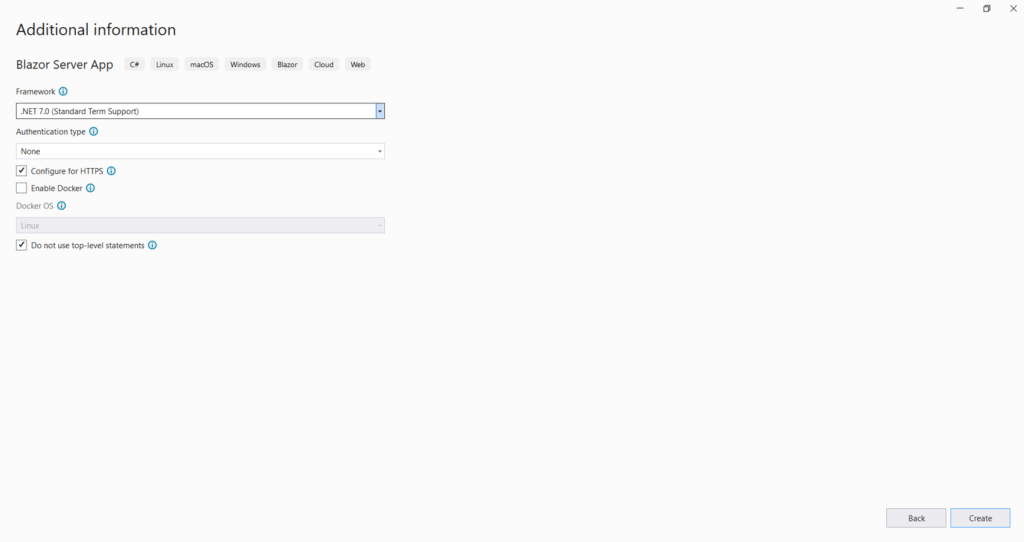
4.Select .NET 7.0 (Standard Term support) as the Framework.
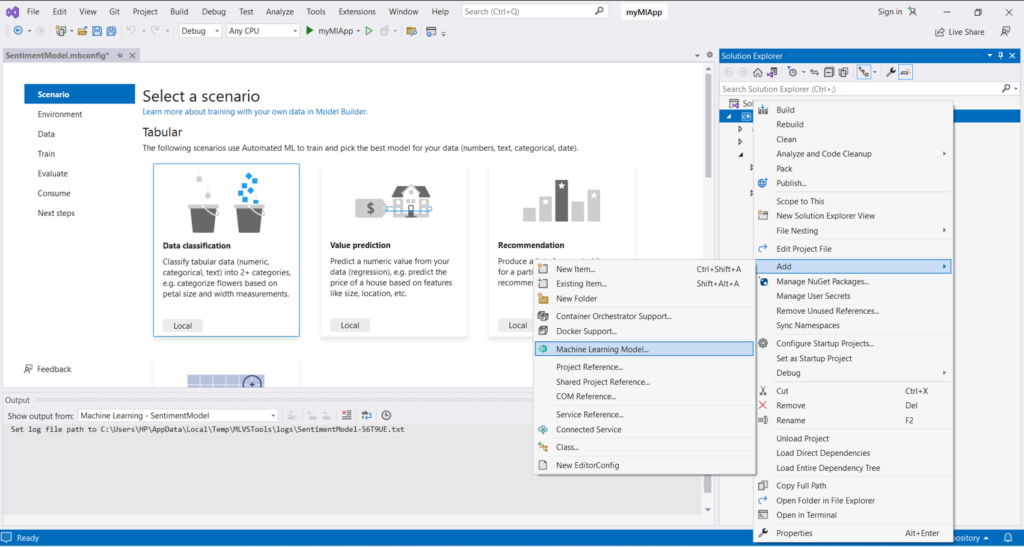
5.Right-click on the myMLApp project in Solution Explorer and select Add > Machine Learning Model.
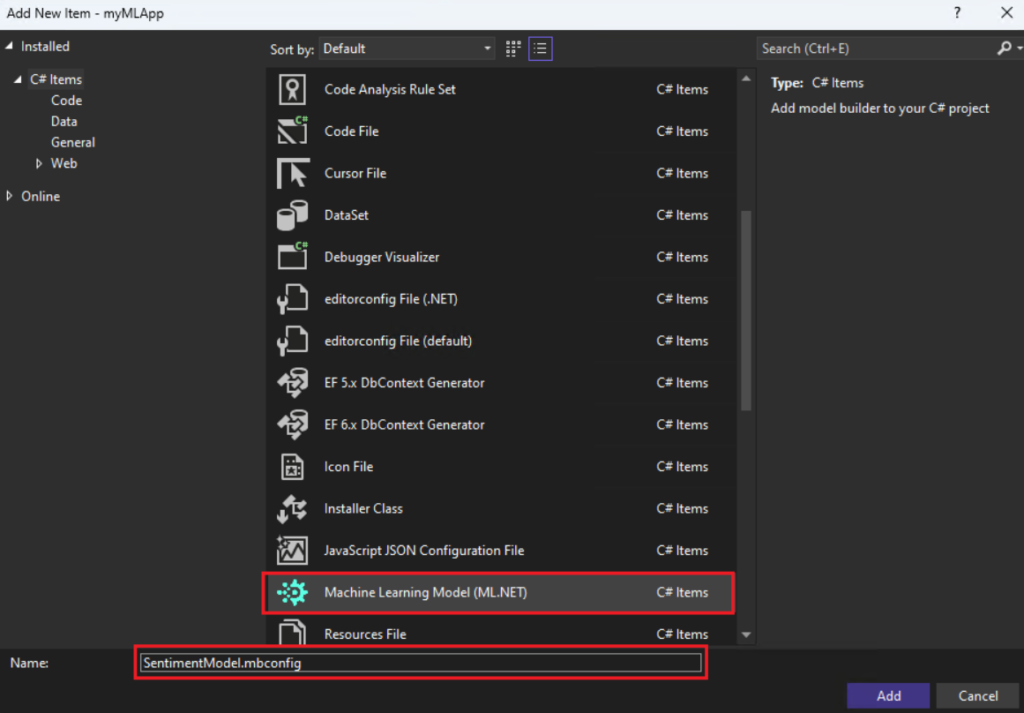
6.In the Add New Item dialog, make sure Machine Learning Model (ML.NET) is selected.
7.Change the Name field to SentimentModel.mbconfig and select the Add button
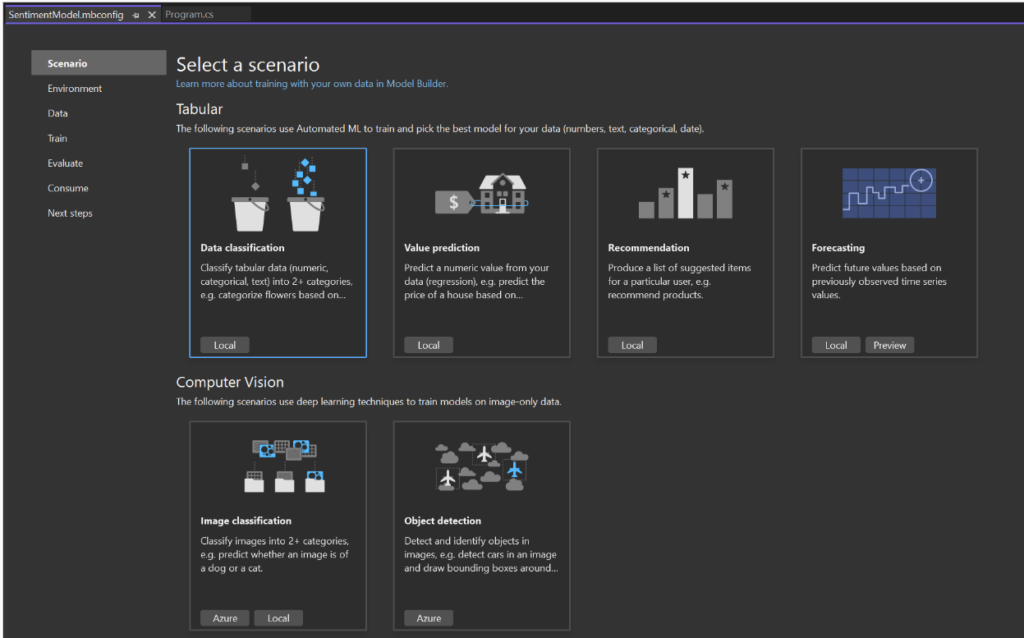
8.Pick a scenario

To begin, open the Model Builder tool and select the “Data classification” scenario from the available options. This scenario is suitable for predicting the category of a comment, such as determining whether it falls into a positive or negative sentiment.

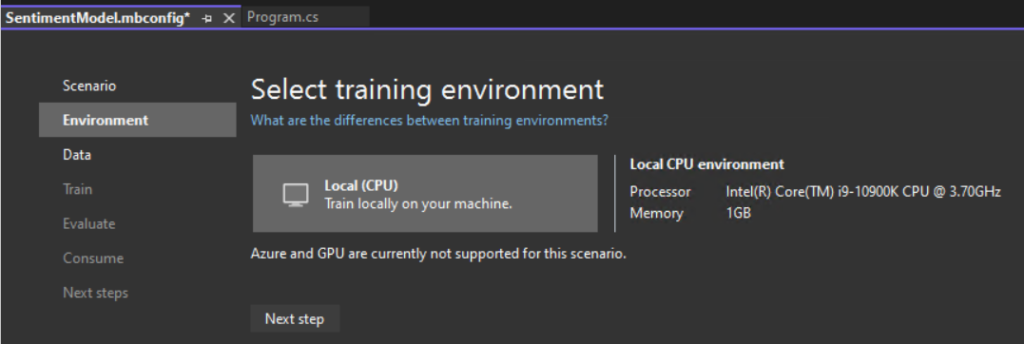
After selecting the “Data classification” scenario, ensure that the training environment is set to “Local.” Although some scenarios allow for training in Azure, classification specifically supports only local training. Once you have confirmed the local environment, proceed to the next step, which is the “Data” step.

Add data

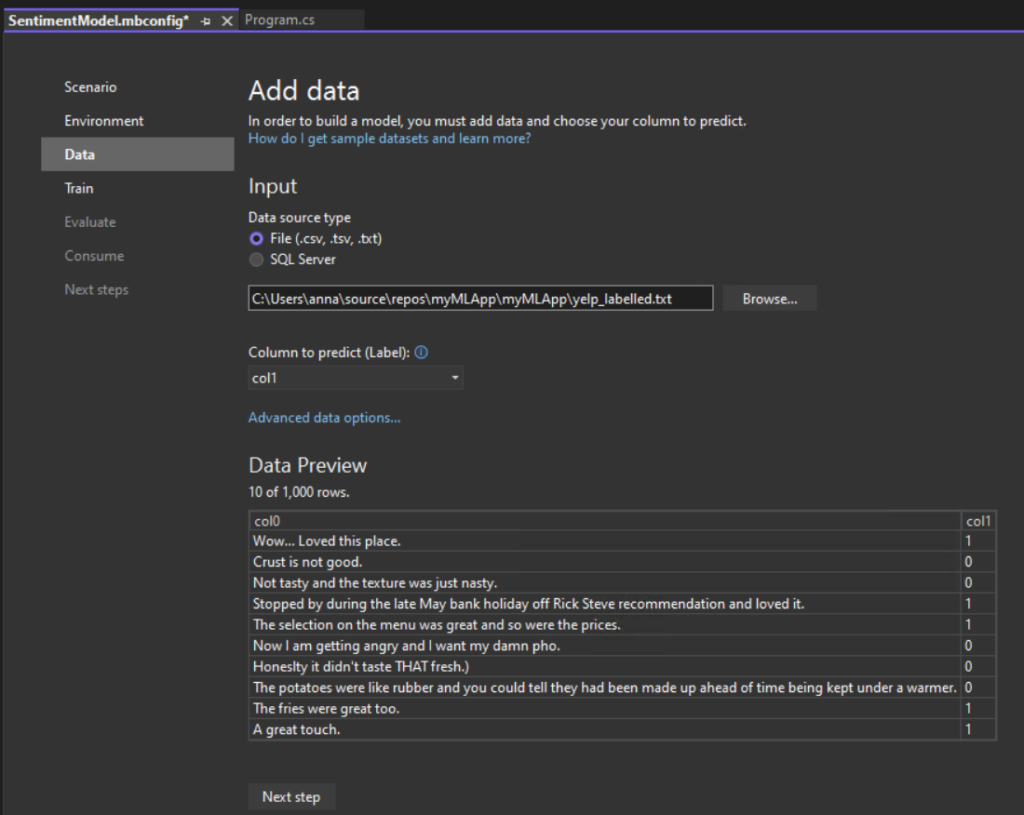
In Model Builder, you can add data from a local file or connect to a SQL Server database. In this case, you’ll add yelp_labelled.txt from a file.

  1. Select File as the input data source type.
  2. Browse for yelp_labelled.txt. Once you select your dataset, a preview of your data appears in the Data Preview section. Since your dataset does not have a header, headers are auto-generated (“col0” and “col1”).
  3. Under Column to predict (Label), select “col1”. The Label is what you’re predicting, which in this case is the sentiment found in the second column (“col1”) of the dataset.
  4. The columns that are used to help predict the Label are called Features. All of the columns in the dataset besides the Label are automatically selected as Features. In this case, the review comment column (“col0”) is the Feature column. You can update the Feature columns and modify other data loading options in Advanced data options, but it is not necessary for this example.

Train your model

Now, you’ll train your model with the yelp_labelled.txt dataset.

Model Builder evaluates many models with varying algorithms and settings based on the amount of training time given to build the best performing model.

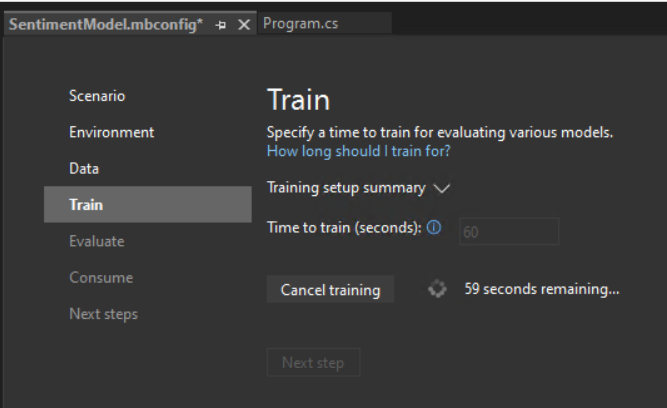
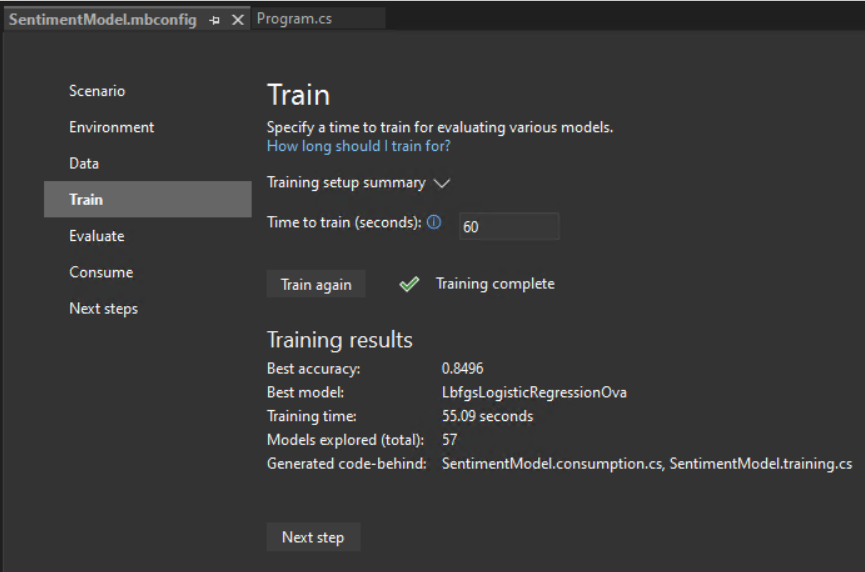
  1. Change the Time to train, which is the amount of time you’d like Model Builder to explore various models, to 60 seconds (you can try increasing this number if no models are found after training) . Note that for larger datasets, the training time will be longer. Model Builder automatically adjusts the training time based on the dataset size.
  2. Select Start training to start the training process. Once training starts, you can see the time remaining.

Training results

  • Best accuracy – This shows you the accuracy of the best model that Model Builder found. Higher accuracy means the model predicted more correctly on test data.
  • Best model – This shows you which algorithm performed the best during Model Builder’s exploration.
  • Training time – This shows you the total amount of time that was spent training / exploring models.
  • Models explored (total) – This shows you the total number of models explored by Model Builder in the given amount of time.

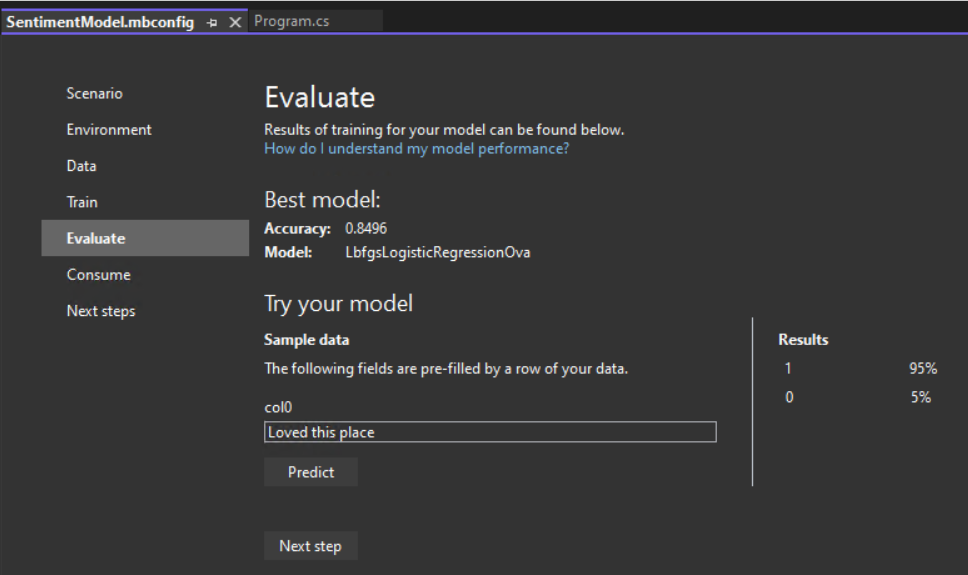
Evaluate your model

Consume your model

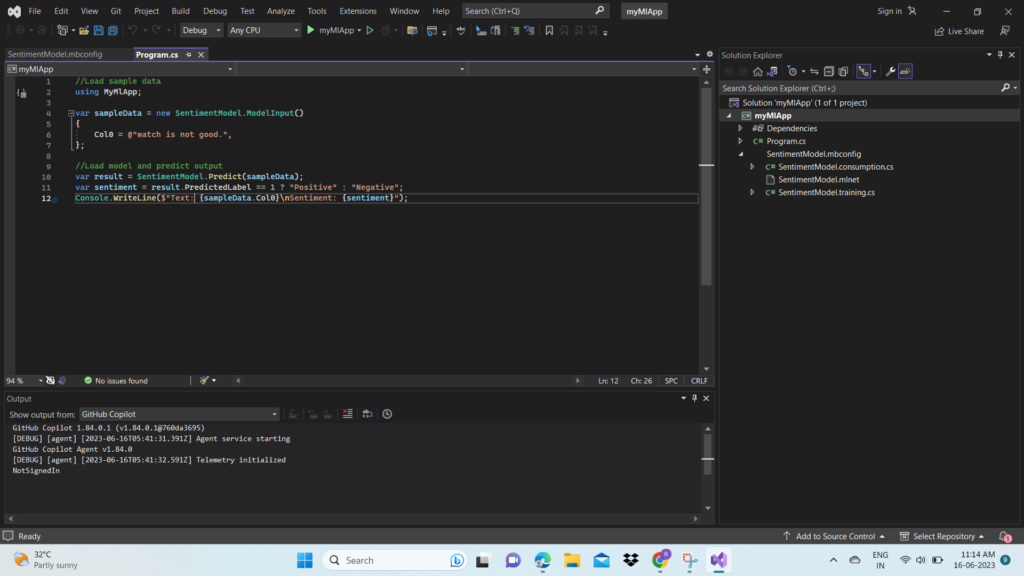
The last step is to consume your trained model in the end-user application.

  1. Replace the Program.cs code in your myMLApp project with the following code:

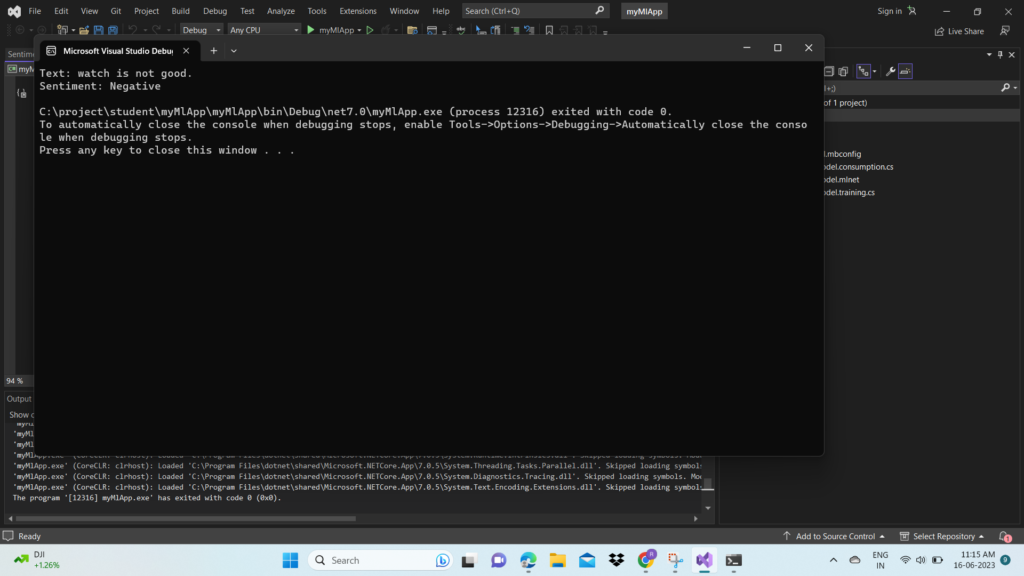
Run myMLApp (select Ctrl+F5 or Debug > Start Without Debugging). You should see the following output, predicting whether the input statement is positive or negative.

LEADERSHIP IS NOT A POSITION OR TITLE, IT IS A BEHAVIOUR

The definition of leadership is evolving in every passing year. If earlier it was about authority and dominance, itโ€™s more about collaboration and teamwork nowadays. 

Many people assume that leadership is all about high-ranking positions and prestigious titles, money, and fame. However, leadership is not solely defined by the postion or tittle that one holds. In fact it’s about a behaviour that is demonstrated through actions and decision-making and the example you set for others. It goes beyond formal authority and encompasses a set of behaviors and qualities that inspire and influence others to achieve common goals. 

Effective leaders exhibit a range of characteristics, including strong communication skills, the ability to inspire and motivate others, and a willingness to take calculated risks. They are able to make difficult decisions and take responsibility for their actions. They are also able to understand and manage their own emotions, as well as empathize with the emotions of others. This allows them to build strong relationships, resolve conflicts, and create a positive and inclusive work environment. These qualities are not necessarily tied to a specific position or title, and anyone can exhibit in any role.

Furthermore, leadership is not limited to a single individual. It can emerge from various levels within an organization and can be practiced by anyone, regardless of their formal position. Leaders empower others, delegate responsibilities, and create opportunities for growth and development. They foster a culture of collaboration and encourage diverse perspectives and contributions from team members.

Another important aspect of leadership is integrity and ethical behavior. Leaders act with honesty, transparency, and fairness. They adhere to a strong set of moral and ethical principles, making decisions that are in the best interest of the team or organization as a whole. They lead by example and inspire trust and respect among their peers and subordinates.

Lastly, effective leaders understand the importance of nurturing and supporting their team members. They provide guidance, mentorship, and recognition to help individuals reach their full potential. They value and appreciate the unique strengths and contributions of each team member, fostering a sense of belonging and empowerment.

In summary, the definition of leadership has shifted from mere authority and dominance to encompass a wide range of qualities and behaviors. It is about collaboration, teamwork, emotional intelligence, adaptability, continuous learning, integrity, and support for others. Leadership is not tied to a specific position or title; rather, it is demonstrated through actions, decision-making, and the ability to inspire and influence others towards common goals.  

Object Detection with YOLOv3 using Emgu.CV in C#

Introduction:

Object detection is a fundamental task in computer vision, and YOLO (You Only Look Once) is a popular real-time object detection algorithm. In this blog, we will explore how to perform object detection using YOLOv3 in C# with the Emgu.CV library. We will build a simple application that can detect objects in real-time using a webcam.

Prerequisites:

To follow along with this tutorial, make sure you have the following prerequisites:

  1. Visual Studio or any C# development environment installed.
  2. Emgu.CV library installed.
  3. Darknet YOLOv3 configuration file (.cfg) and pre-trained weights file (.weights).
  4. COCO dataset class labels file (coco.names).
  5. Webcam or a video source to capture frames.

Step 1: Setting Up the Project First, create a new C# project in your preferred development environment. Make sure you have the Emgu.CV library referenced in your project.

Step 2: Loading YOLOv3 Model and Class Labels In the provided code, we start by loading the YOLOv3 model and the corresponding class labels from the files. Adjust the paths to the configuration file (“yolov3.cfg”), weights file (“yolov3.weights”), and class labels file (“coco.names”) based on your local file system.

Step 3: Setting Backend and Target for DNN Next, we set the preferable backend and target for the DNN (Deep Neural Network) module. In this case, we choose the OpenCV backend and CPU as the target device. However, you can modify these settings based on your hardware capabilities and requirements.

Step 4: Initializing VideoCapture and Frame Processing We create a VideoCapture object to access the webcam or video source. The code inside the while loop continuously captures frames and processes them for object detection.

Step 5: Preprocessing and Forward Pass For each captured frame, we resize it and convert it to the required format for the YOLOv3 model. The frame is then passed through the network for a forward pass, and the output is obtained.

Step 6: Object Detection and Visualization The output from the network is processed to extract the bounding boxes, class indices, and confidence scores for detected objects. We filter out detections with confidence below a certain threshold (0.8 in this case). Non-maximum suppression (NMS) is applied to remove overlapping bounding boxes.

Finally, we draw the bounding boxes and class labels on the frame. The resulting frame is then resized and displayed using the OpenCV imshow function.

Step 7: Exiting the Application The application continues to capture frames and perform object detection until the user presses the ‘Esc’ key. This is achieved by checking for a keyboard event using the CvInvoke.WaitKey function.

Object detection from Webcam

using Emgu.CV;
using Emgu.CV.Dnn;
using Emgu.CV.Structure;
using Emgu.CV.Util;

class Program
{
static void Main(string[] args)
{
// Step 2: Loading YOLOv3 Model and Class Labels
var net = DnnInvoke.ReadNetFromDarknet(“F:\OpenCVTutorials-masters\OpenCVTutorials-master\detection\yolov3.cfg”, “F:\OpenCVTutorials-masters\OpenCVTutorials-master\detection\yolov3.weights”);
var classLabels = File.ReadAllLines(“F:\OpenCVTutorials-masters\OpenCVTutorials-master\detection\coco.names”);

// Step 3: Setting Backend and Target for DNN
net.SetPreferableBackend(Emgu.CV.Dnn.Backend.OpenCV);
net.SetPreferableTarget(Emgu.CV.Dnn.Target.Cpu);

// Step 4: Initializing VideoCapture and Frame Processing
var vc = new VideoCapture(0, VideoCapture.API.DShow);
Mat frame = new();
VectorOfMat output = new();

VectorOfRect boxes = new();
VectorOfFloat scores = new();
VectorOfInt indices = new();

while (true)
{
vc.Read(frame);

CvInvoke.Resize(frame, frame, new System.Drawing.Size(0, 0), .4, .4);

boxes = new();
indices = new();
scores = new();

var image = frame.ToImage<Bgr, byte>();

// Step 5: Preprocessing and Forward Pass
var input = DnnInvoke.BlobFromImage(image, 1 / 255.0, swapRB: true);

net.SetInput(input);

net.Forward(output, net.UnconnectedOutLayersNames);

for (int i = 0; i < output.Size; i++)
{
var mat = output[i];
var data = (float[,])mat.GetData();

for (int j = 0; j < data.GetLength(0); j++)
{
float[] row = Enumerable.Range(0, data.GetLength(1))
.Select(x => data[j, x])
.ToArray();

var rowScore = row.Skip(5).ToArray();
var classId = rowScore.ToList().IndexOf(rowScore.Max());
var confidence = rowScore[classId];

if (confidence > 0.8f)
{
var centerX = (int)(row[0] * frame.Width);
var centerY = (int)(row[1] * frame.Height);
var boxWidth = (int)(row[2] * frame.Width);
var boxHeight = (int)(row[3] * frame.Height);

var x = (int)(centerX – (boxWidth / 2));
var y = (int)(centerY – (boxHeight / 2));

boxes.Push(new System.Drawing.Rectangle[] { new System.Drawing.Rectangle(x, y, boxWidth, boxHeight) });
indices.Push(new int[] { classId });
scores.Push(new float[] { confidence });
}
}
}

// Step 6: Object Detection and Visualization
var bestIndex = DnnInvoke.NMSBoxes(boxes.ToArray(), scores.ToArray(), .8f, .8f);

var frameOut = frame.ToImage<Bgr, byte>();

for (int i = 0; i < bestIndex.Length; i++)
{
int index = bestIndex[i];
var box = boxes[index];
CvInvoke.Rectangle(frameOut, box, new MCvScalar(0, 255, 0), 2);
CvInvoke.PutText(frameOut, classLabels[indices[index]], new System.Drawing.Point(box.X, box.Y – 20),
Emgu.CV.CvEnum.FontFace.HersheyPlain, 1.0, new MCvScalar(0, 0, 255), 2);
}

CvInvoke.Resize(frameOut, frameOut, new System.Drawing.Size(0, 0), 4, 4);
CvInvoke.Imshow(“output”, frameOut);

// Step 7: Exiting the Application
if (CvInvoke.WaitKey(1) == 27)
break;
}
}

}

Conclusion: In this blog post, we learned how to perform real-time object detection using YOLOv3 in C# with the Emgu.CV library. We explored the code that loads the YOLOv3 model, captures frames from a video source, and performs object detection using the model’s output. The detected objects are then visualized by drawing bounding boxes and class labels on the frames.

Introduction to web3 in c# using .Net and Nethereum.

Web3 is a term that refers to the next generation of the World Wide Web, where decentralized technologies are used to build applications that are more open, transparent, and secure. Web3 incorporates blockchain technology and smart contracts to enable peer-to-peer transactions, decentralized identity, and decentralized applications (dApps). In the context of C# and .NET development, Nethereum is a powerful library that allows you to interact with the Ethereum blockchain using C#.

Started with QuickNode

QuickNode is a platform that provides infrastructure and hosting services for blockchain and Web3 applications. It allows developers to easily deploy and manage their own nodes, which are essential for interacting with various blockchain networks. QuickNode supports a wide range of blockchain networks, including Ethereum, Bitcoin, Binance Smart Chain, and more.

By using QuickNode, developers can access the full functionality of blockchain networks without the need to set up and maintain their own infrastructure. QuickNode offers reliable and scalable node hosting, real-time monitoring, API access, and developer tools to simplify the process of building decentralized applications (dApps) and interacting with blockchain networks.

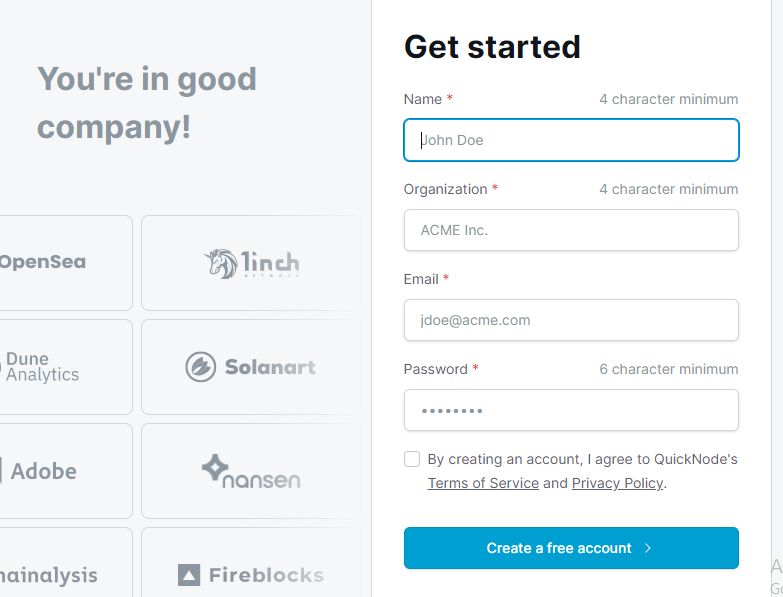
Step1: Go to https://QuickNode.com/, create account and verify your email.

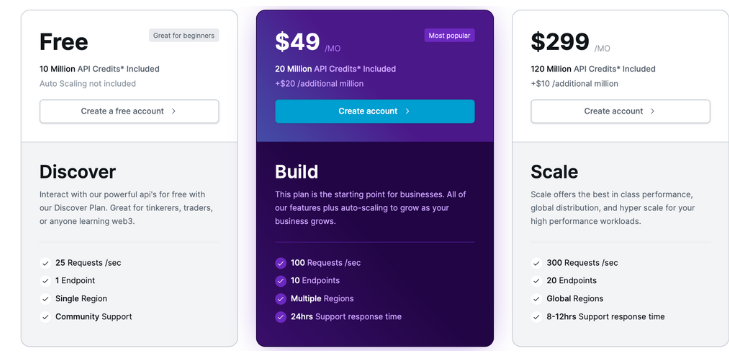
Step2: Select your Plan

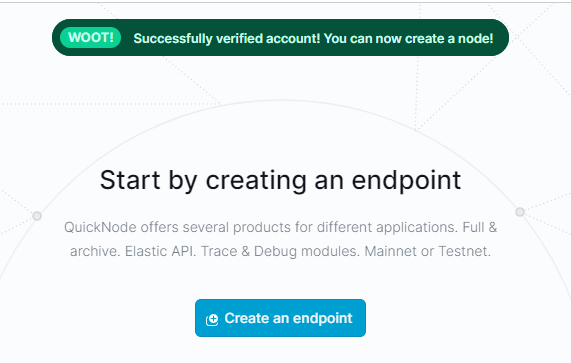
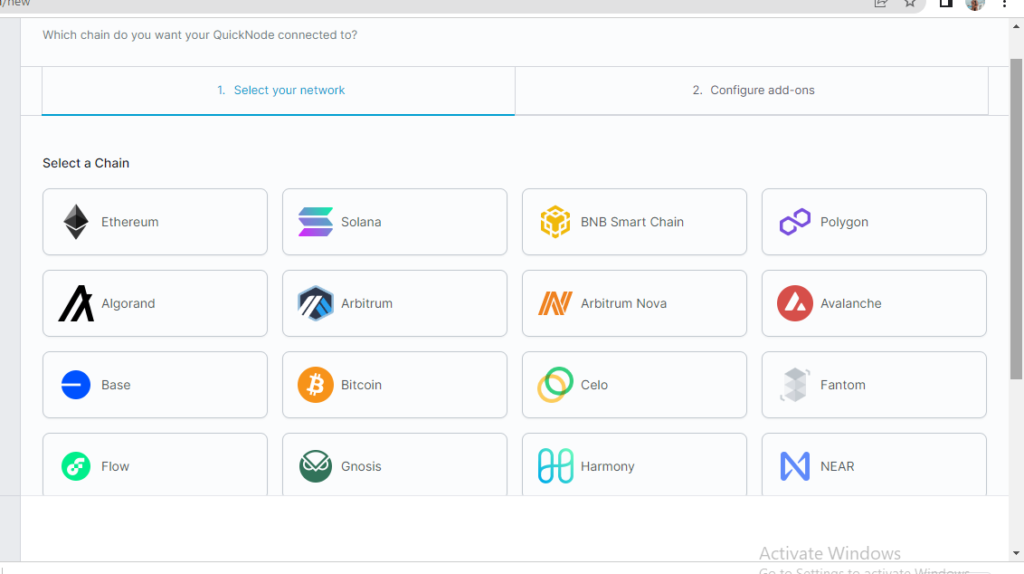
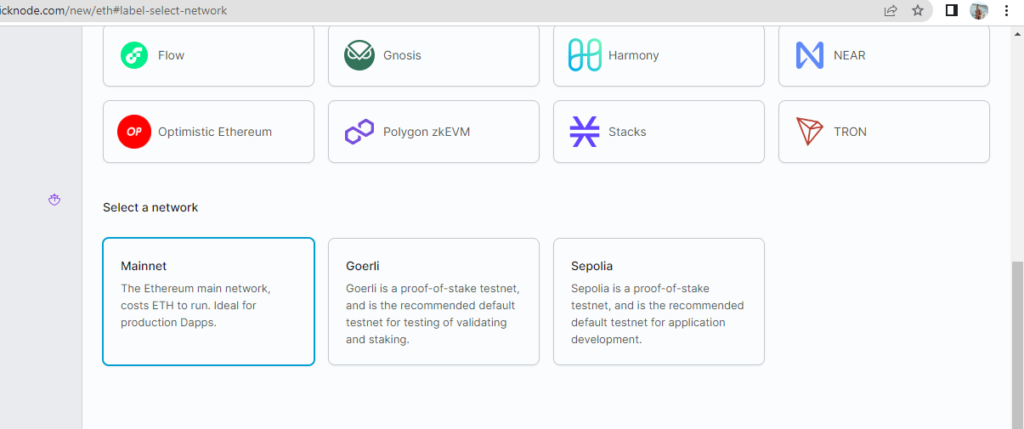
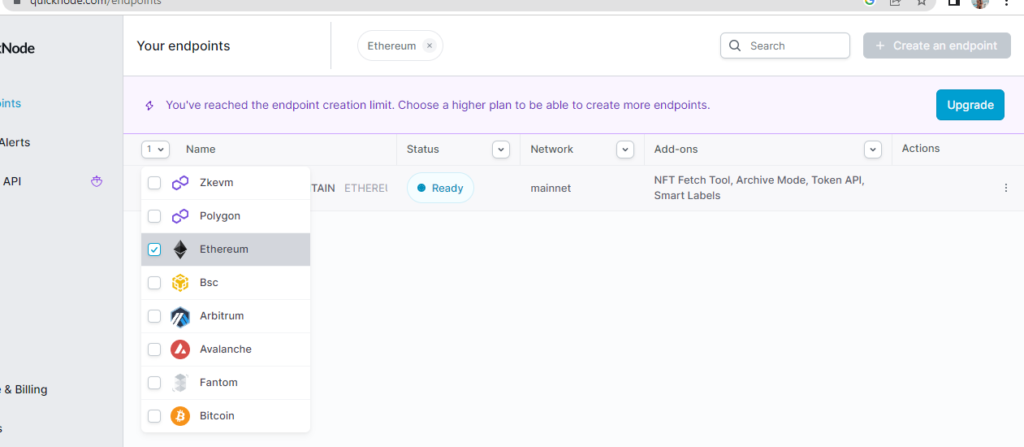
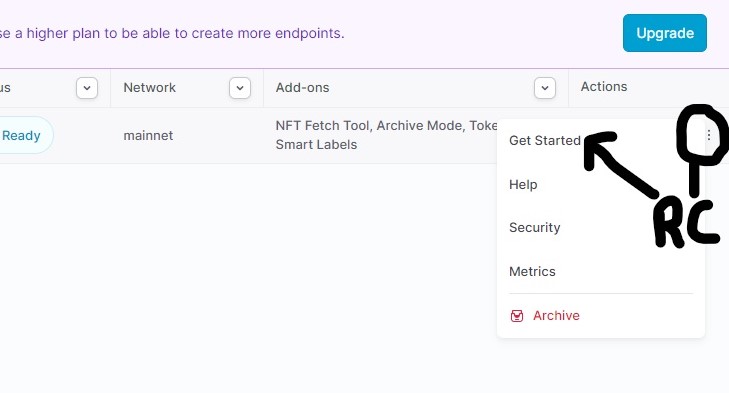
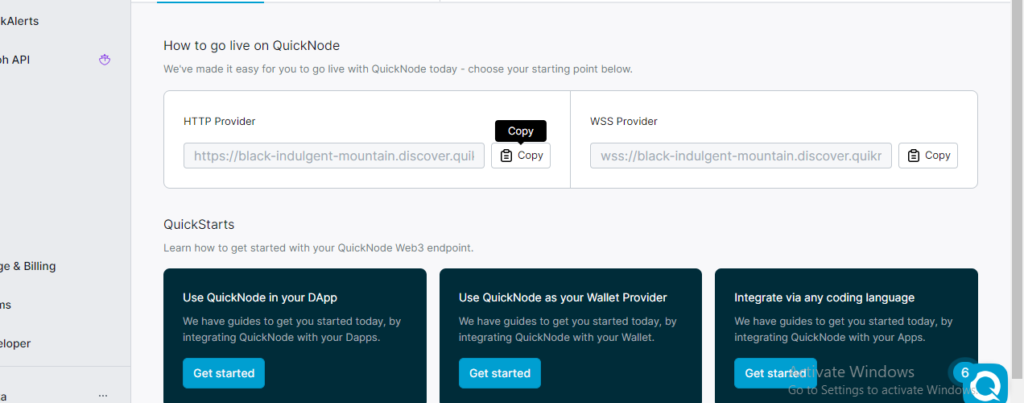
Step3: Create your endpoint

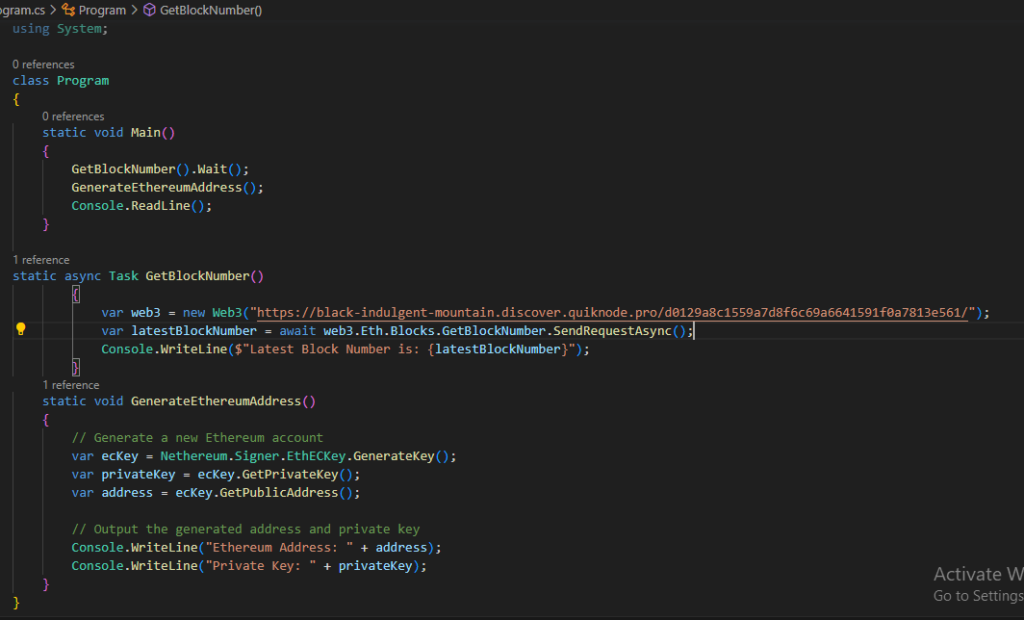
, the URL in the HTTP provider “https://black-indulgent-mountain.discover.quiknode.pro/d0129a8c1559a7d8f6c69a6641591f0a7813e561/” is passed as a parameter when creating a new instance of the Web3 class. This URL specifies the endpoint of the QuikNode service that hosts the Ethereum node.

How to connect to Ethereum using .NET (Nethereum)

Nethereum is a .NET integration library for Ethereum, which allows developers to interact with the Ethereum blockchain using .NET and C#. It provides a comprehensive set of tools and functionalities for building decentralized applications (dApps) and interacting with Ethereum smart contracts.

Installing Nethereumโ€‹

Nethereum requires .NET Core or .NET Framework(4.5.1+) installed. Weโ€™ll install .NET Core SDK to make Nethereum work. Download and install the .NET Core SDK ver 3.1 based on your operating system. Then go to your terminal/command line and type the following.

$ dotnet new console -o nethereuma

This will create a new .NET application in the current directory. You can give your application any name

Now cd into your application.

$ cd nethereuma

Add package reference to Nethereum.Web3

$ dotnet add package Nethereum.Web3

This might take a while. After the package reference is added, download/update the package by typing the following.

$ dotnet restore

If everything goes right, Nethereum will be added to your system with nethereum web3 package.

Booting our Ethereum node

After you’ve created your free ethereum endpoint, copy your HTTP Provider endpoint:

You’ll need this later, so copy it and save it.

Connecting with Ethereum

Now go to your .NET app folder and open the Program.cs C# file in a text editor .

Connect with Ethereum and then get the latest block number from the Ethereum blockchain.

class Program
{
    static void Main()
    {
        GetBlockNumber().Wait();
       
    }

static async Task GetBlockNumber()
{
     var web3 = new Web3("ADD_YOUR_ETHEREUM_NODE_URL");
     var latestBlockNumber = await     web3.Eth.Blocks.GetBlockNumber.SendRequestAsync();
     Console.WriteLine($"Latest Block Number is: {latestBlockNumber}");
        }
}

Generate a Ethereum Address

While signing in to any platform on the internet, you need to authenticate using a combination of credentials. Consider an Ethereum address as your username and a corresponding private key as the password. While your Ethereum address is public and can be shared, the private key must always be kept secret. Using this combination lets you interact with the Ethereum blockchain. An Ethereum address is your identity on the blockchain, and it looks like this โ€œ0x6E0d01A76C3Cf4288372a29124A26D4353EE51BEโ€.

 static void GenerateEthereumAddress()
    {
        // Generate a new Ethereum account
        var ecKey = Nethereum.Signer.EthECKey.GenerateKey();
        var privateKey = ecKey.GetPrivateKey();
        var address = ecKey.GetPublicAddress();

        // Output the generated address and private key
        Console.WriteLine("Ethereum Address: " + address);
        Console.WriteLine("Private Key: " + privateKey);
    }

Run the code